
How to buy
Step-by-step payment instructions for purchasing uPresenter.
Fast – Convenient – Secure
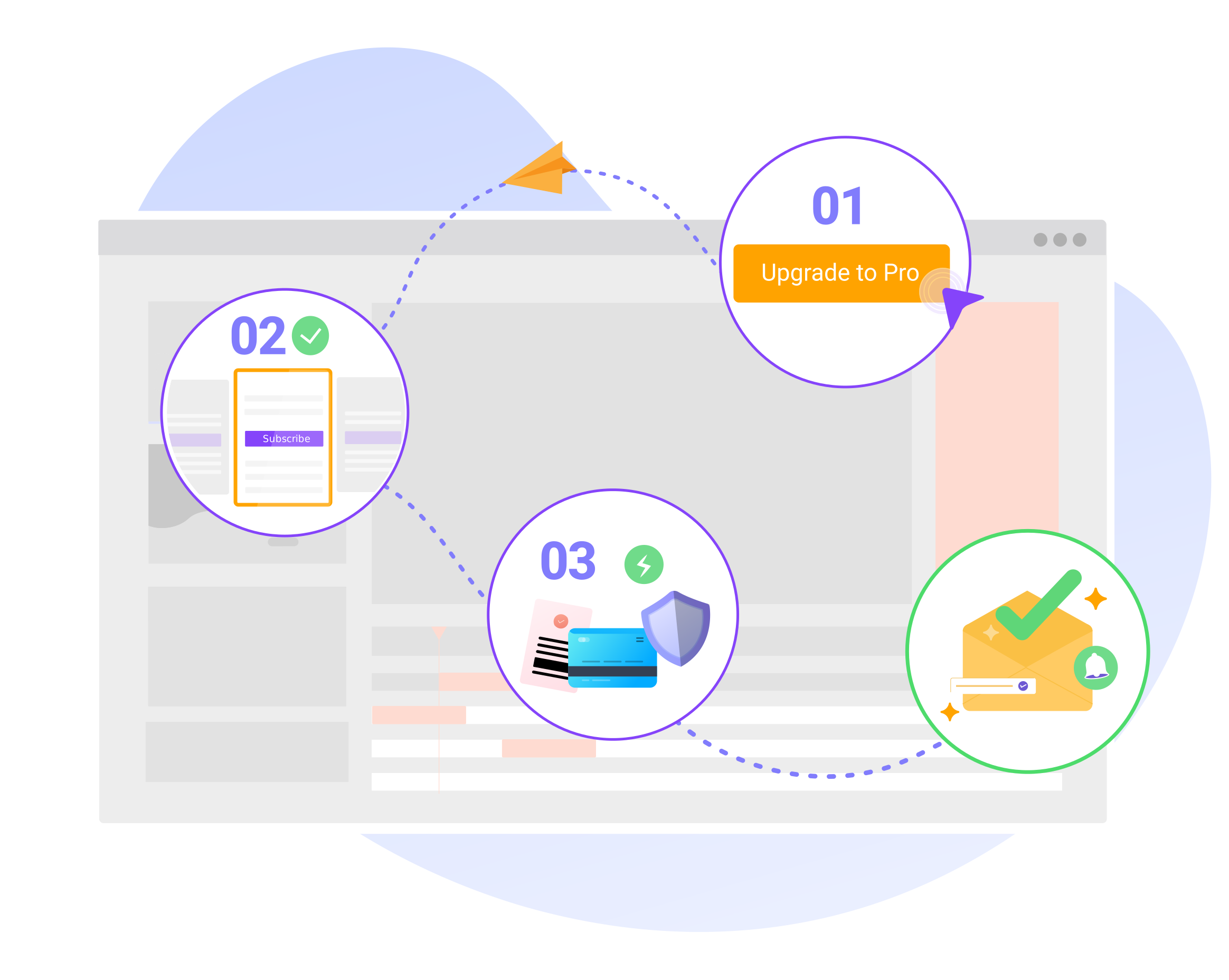
Step 1: Log in to uPresenter
Visit the uPresenter website.
Click Log in.
Sign in using your existing account, or create a new one if you don’t have an account yet.
⚠️ You must be logged in to make a purchase.
Step 2: Choose a Plan or Credits
Buy a Subscription:
Subscriptions unlock premium features for a fixed period.
Monthly or Annual plans
Suitable for regular users and teams
Choose number of seats (for team usage):
Select how many users will access the subscription
Pricing will update automatically based on seat count
Buy Credits:
Credits are pay-as-you-go and can be used for AI features.
Select the option that best fits your usage.
Step 3: Fill in Invoice Information
Enter your billing details during checkout:
Full name or company name
Address
Tax ID/ID Card (if applicable)
Invoice email
Phone number
👉 This information will be used to issue your invoice.
Step 4: Complete Payment
Choose a payment method and complete your purchase securely.
Step 5: Receive Confirmation & Invoice
You’ll receive a purchase confirmation email.
The invoice will be issued and sent to you later by email.
Contact Information
Email
support@ulearnbox.comPhone
+8424 – 3755 – 8373
Community
talk.ulearnbox.comOffice location
15th Floor, Viet A Building, No. 9 Duy Tan Street, Cau Giay Ward, Hanoi, Vietnam